The Cue Clip Composer
The window that opens a bake up and shows you what is in it. Every stage from the cues on disk to the shapes that land on the face, drawn as rows you can read, scrub and edit.
Baking is the part that happens without you watching. The Cue Clip Composer is where you go afterwards to see what it found, check a line that did not sound right, and fix it in place. It is also an editor-time previewer, so you can watch a character speak without entering play mode.
A Map of the Window
 1
2
3
4
5
6
7
8
9
10
11
12
13
14
1
2
3
4
5
6
7
8
9
10
11
12
13
14
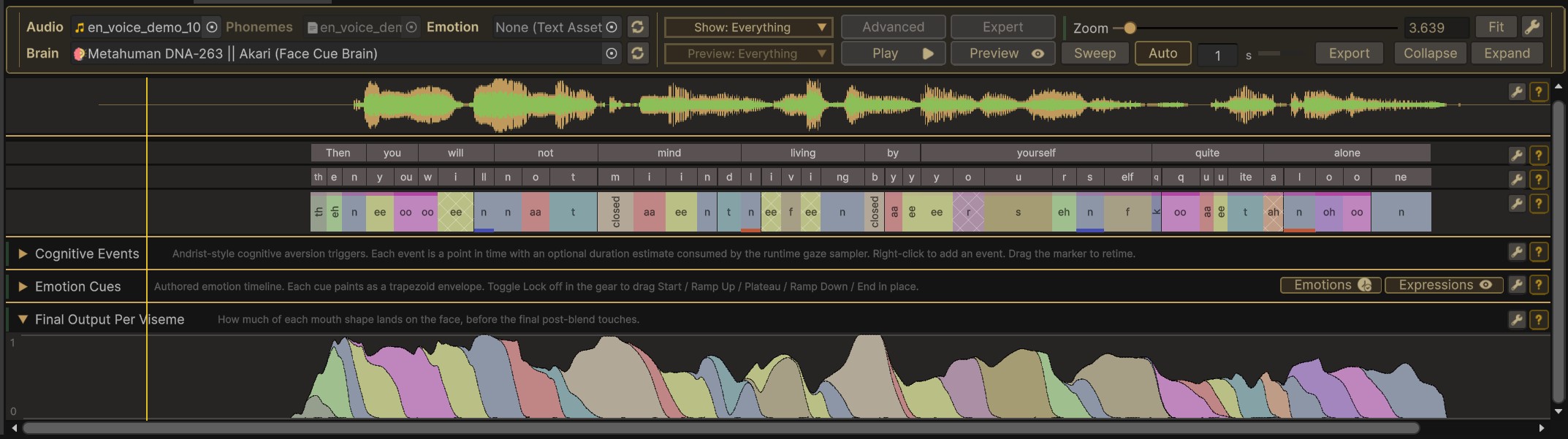
- The clip and the character. Audio, Phonemes and Emotion are the files being read. Brain is the character they are played through.
- Show chooses which sections of the window are drawn.
- Preview chooses which drivers move the character.
- Advanced and Expert unfold the deeper rows.
- Sweep recomputes the performance, which every computed row needs, Final Output included.
- Export writes the whole clip out as a spreadsheet.
- Audio Waveform. The sound itself.
- Words and Letters. What was said, and which part of each word each cue belongs to.
- Visemes. The cues. This is the row you spend the most time in.
- Cognitive Events and Emotion Cues. The two authored timelines, folded here. Cognitive events sit behind Spans & Events, which starts off.
- Final Output. How much of each mouth shape lands on the face.
- Every row has its own settings and its own help, on the right. The question mark is the in-editor documentation for that row.
- Zoom and Fit scale the timeline and put the whole clip back. Zooming in also draws the deeper rows at full detail.
- Collapse and Expand fold every row at once.
Opening a Clip
Drop a baked AudioClip into Audio and the cue files that go with it are found and loaded, because they were named after the clip when the baker wrote them. The Phonemes and Emotion fields show what it picked up, and you can point either of them somewhere else by hand.
There are two shorter routes in. Show In ▸ Cue Clip Composer in the baker opens the bake you just made, and that is the one worth building a habit around, because you are already looking at the thing you want to check. The other is on the character itself: the Speech driver's inspector carries an Open Pipeline Window button that opens the composer already bound to that character, which saves assigning the brain by hand.
Opening a clip into a window that already has a character keeps that character. FaceCue will not swap out a brain you wired up yourself just because a bake arrived from somewhere else.
Without a character in Brain, the window shows you what is in the files. With one, it shows you what those files become on that character, all the way to the shapes on the face. Most of what follows needs a character assigned.
Cues Loaded From Disk Will Not Play in the Game
The window can read cue files straight off disk, which is how it opens a clip you point it at. Your game cannot. At play time a character resolves cues through a registry or through Addressables, so a file that has never been added to one previews here and does nothing in a build.
FaceCue says so rather than letting you find out later. When it notices, it offers Add to Registry and, if you have the package, Add to Addressables, so the fix is one click from the warning.
Show and Preview Are Not the Same Control
The two dropdowns sit one above the other, are the same width, and summarise themselves the same way, as Everything, Nothing or Mixed with a count. They do different jobs, and it is worth being clear about which is which before you touch either.
| What it changes | What it covers | |
|---|---|---|
| Show | What you see in the window | Audio, Speech, Prosody, Emotion, Spans & Events |
| Preview | What moves on the character | Speech, Prosody, Emotion, Eyes, Breath |
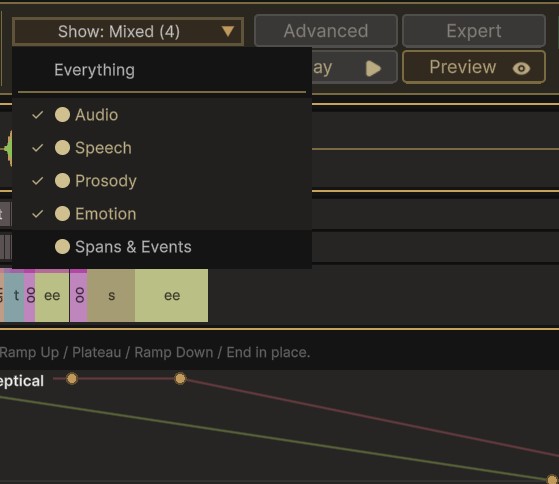
Show is a filter on the window. Turning Prosody off does not change the performance in any way, it hides those rows so you can look at the rest without scrolling past them. It is how you get a long window back down to the part you are working on.
Spans & Events is the one that starts off. It covers the language spans and cognitive events authored onto a clip, and most clips carry neither, so the rows would otherwise sit empty above the output. Turn it on when you are working with a clip that has them.
Preview is a filter on the character. Turning Emotion off means the emotion driver stops moving the face while you play, so you can watch the mouth on its own and see what it is doing without an expression sitting on top of it. Covered in Preview and Scrubbing.
Saving and Undo
Edits are written to the cue file as you make them. There is no save button and nothing to remember.
Undo is Unity's own, so Ctrl+Z reaches everything the window does, including drags. FaceCue keeps a copy of each file's editable text alongside the edit, so undoing a deletion brings the cue back with everything it had, not with whatever could be reconstructed.
Sending Us a Clip
If a line misbehaves and you cannot see why, Export writes the whole thing out: every cue with its readings, and the performance sampled across the clip, plus a record of the settings that produced it.
It is a plain spreadsheet, so you can read it yourself, and it is the most useful thing you can attach to a support message. It describes one clip on one character with one set of settings, and it contains no part of your project beyond that.
The same file answers a quieter question. Because the settings that produced it are recorded alongside the data, two exports of the same line can be compared to see exactly what a change did.
Where to Go Next
- The Rows covers what each row is telling you, and how to read the marks on a cue.
- Editing Cues covers fixing a bake in place.
- Preview and Scrubbing covers watching it back, driver by driver.