Audio Clips on the Timeline
Sequencing a performance in Unity's Timeline.
This page covers voice lines on an ordinary audio track, which drive the face the way they do anywhere else. The FaceCue Tracks covers the four tracks for what audio does not carry, and Recording a Timeline covers capturing a performance with the Unity Recorder.
Everywhere else in FaceCue, a character mouths whatever its Audio Source plays: it recognises the clip, finds the cues baked for it, and follows along. Unity's Timeline plays audio differently. An Audio Track plays its clips through the source without telling it which clip is playing, so on its own a character cannot tell which line it is hearing.
There was a choice here. FaceCue does ship a track that plays cues on its own, with no audio involved, and a cutscene could be built from those laid beside the audio clips. But that means timing every cue clip against its audio by hand, which is tedious, and the result is never as good as a face following the audio itself. So the answer is the Director Watcher: with one component beside the Playable Director, a voice line dropped on an audio track drives the face exactly as it would anywhere else, and the FaceCue tracks are kept for what has no audio to follow.
The Director Watcher
One component, added beside a Playable Director, and every character whose voice plays on that Timeline's audio tracks is driven from it. Its header says what it does: it drives every bound character's face from these Timelines' audio tracks. A multi-character cutscene needs exactly one.
It finds the characters for you. Every character whose voice Audio Source is bound on a non-muted audio track is discovered and driven, so a line dropped onto a track starts moving the right mouth with no wiring. What the character does with the line is exactly what it does with a line played through its own Audio Source: baked cues for the clip if there are any, and the live modes when there are none, in the order the Speech driver falls back through.
Two references, under References:
- Directors: the Playable Directors whose Timelines drive voices. Leave it empty to use one on the same object. List the directors that directly own the audio tracks.
- Speakers: the characters this watcher may drive. Leave it empty and it drives every character it finds. Fill it in to limit the watcher to just those.
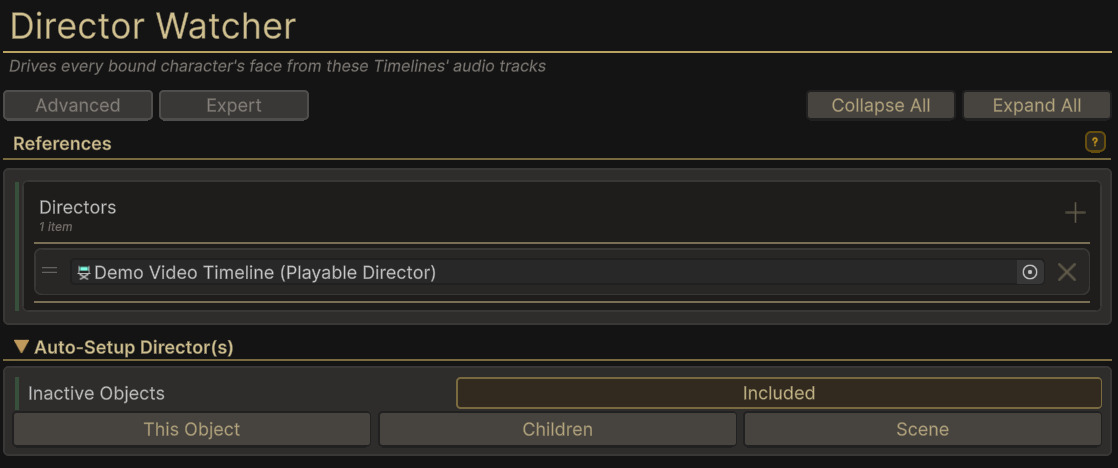
One watcher can hold several directors, and they do not have to be related. Unrelated cutscenes across a scene can share a single watcher rather than carrying a component each. It costs the same either way, so the list is there for convenience: the work happens per driven character, not per component, and a director that is not playing costs nothing whether it sits alone or in a list of 20.
The inspector's Internal Status lists the directors being watched and, for each driven character, the clip it is on and where in it, and what the live analysis can do with that audio. A line that reads "clip needs Decompress On Load" is telling you the audio was imported in a way the live analysis cannot read at a position, which only matters when there are no baked cues for it.
Filling the Directors List
Auto-Setup Director(s) fills the list for you, with three buttons for the three scopes worth having: This Object takes the directors on the watcher's own object, Children takes those and everything under it, and Scene takes every director in the scene. Each adds to the list rather than replacing it, so the scopes can be combined and a hand-picked entry is never lost.
Inactive Objects above them decides whether Children and Scene reach directors on objects that are switched off. A cutscene kept disabled until it runs is the ordinary case for that, which is why it is a visible choice rather than an assumption.
Nested Timelines
A Timeline can play another Timeline, through a Control track, and the characters speaking in that nested Timeline need driving too.
Drive Owned Nested Timelines on the parent's watcher does it. The watcher follows the Control clips the watched Timelines play and drives the directors it finds on the other end, so a cutscene built out of nested Timelines needs no setup beyond the one watcher at the top. Nesting Depth beside it is how many Timelines deep to follow when a nested Timeline plays another one. It is a safety limit rather than a tuning dial, and following further costs nothing while a cutscene runs.
This reaches nesting that does not exist until the cutscene runs. A Control clip can create its prefab at play time and drive the director on that instance, and a watcher following the clips finds it the same as any other, where a list filled in the editor never could.
Not on Top of a Watcher the Nested Timeline Already Has
Turn it on only when those nested Timelines do not carry watchers of their own. If both are on, the parent's watcher and the child's each drive the same character, and they fight over the mouth.
Pick one shape per cutscene: a watcher at the top with this on, or a watcher on each director with this off.
An adopted director never appears in the Directors list, since nothing put it there. Internal Status is where to see what adoption found: each watched director is marked listed or nested.
The Auto Watcher
An experimental second shape, attached to the character instead of the director: every Playable Director in the scene whose Timeline plays this character's voice drives the face, with no per-cutscene setup. It finds directors by scanning the scene at enable and every few seconds after, so a Timeline created and played between scans starts driving up to that late. Cutscenes that need frame-exact pickup should use the Director Watcher. Its inspector header carries the word Experimental for that reason.
Keeping Time with the Sound
A Timeline's audio clip does not always sound exactly where the Timeline says it is. Unity starts it a moment either side of its place, by a different amount on each line, and a recording can shift it further. On Game Time, a long stall also leaves the Timeline behind its own sound. So a character's mouth follows the sound itself, meeting every line the same way, in play and in a recording, whichever Update Method the director uses.
Where the sound can't be followed, the mouth keeps to the Timeline: a clip whose audio FaceCue can't read, a looping clip, and a recording made without its sound. It is set per character on the FaceCue Brain, under Facial Timestep, in the Audio Clock group of its Clock Rate section, as Timeline Lines Follow.
How Lines Share the Mouth
Both watchers drive the face the same way once a line is playing, and four situations are worth knowing about, because what happens in each is chosen rather than incidental.
Two Clips Blended on One Character
When two of a character's clips overlap on the Timeline, in a crossfade or on two audio tracks, the mouth follows one of them at a time. It follows the clip that is louder in the blend, so in a crossfade the handover lands where the two curves cross. The mouth is not reset at the handover: the new line starts from the shape the old one left, so the change reads as one small movement rather than a snap. A hard cut with no blend hands over at the cut, the same way.
So blend, but do not overdo it. The face does not crossfade across the whole overlap. It switches once, near the middle, and smooths the switch. A long blend buys nothing on the face, and a short one is all the mouth needs.
Two Timelines on One Character
Each Playable Director has to be watched by something: its own watcher, one watcher holding both of them, or the Auto Watcher on the character. When two Timelines play the same character's voice at once, the line that started most recently owns the mouth. When it ends, the other Timeline's line, if it is still playing, takes the mouth back from wherever it has got to.
A Line Played While the Timeline Runs
A line your game plays on the character's own Audio Source, from a dialogue system say, follows the same rule as a second Timeline. It started later, so it takes the mouth. When it ends, the Timeline's line takes the mouth back. The same holds the other way round: a Timeline clip starting during a played line takes over, and hands back when it ends.
Pausing and Scrubbing
Pausing the Timeline pauses the face where it is, and scrubbing moves it with the playhead. Switching off the Playable Director component holds the face where it is as well, since Unity treats that as a pause. Between clips the character is not speaking, and the mouth settles the way it does after any line.